


We have been working with Shopware for many years and we stand behind it. Even so, we know that Shopware isn't perfect. Sometimes we can't help shaking our heads a little when a feature hasn't been fully thought through. That's how we came up with our new plugin.
It's about the "Configure properties" dialog, where you select the matching property values when maintaining a product. In a shop with only a few values, you won't notice anything. But as soon as lots of dimensions are maintained as values, you can spend quite a while searching for a single value there. We noticed this while testing with a larger product range – more on that in a moment.
Where the standard search falls short
Since Shopware 6.6.6, this dialog no longer searches only the name of the property value. The name of the group the value belongs to is searched as well. On top of that, the individual words of the search term are combined with "or". So if one of the words appears in the group name, all values of that group end up in the list. And a single one of the words entered is enough for a match. For "19 × 14", for example, this also brings up "Number of lights / 19" or "Socket / E14". The results are then sorted by name. How well a value matches the search term plays no role.
We recreated this in our test shop. Entering "deko figur" brought up all values of the "Figure type" group, including "Witch" and "Dog", and the list was 47 pages long. For the dimension "19 × 14" it was 311 pages, and the values you were actually looking for weren't at the top. That's when we decided to change it.
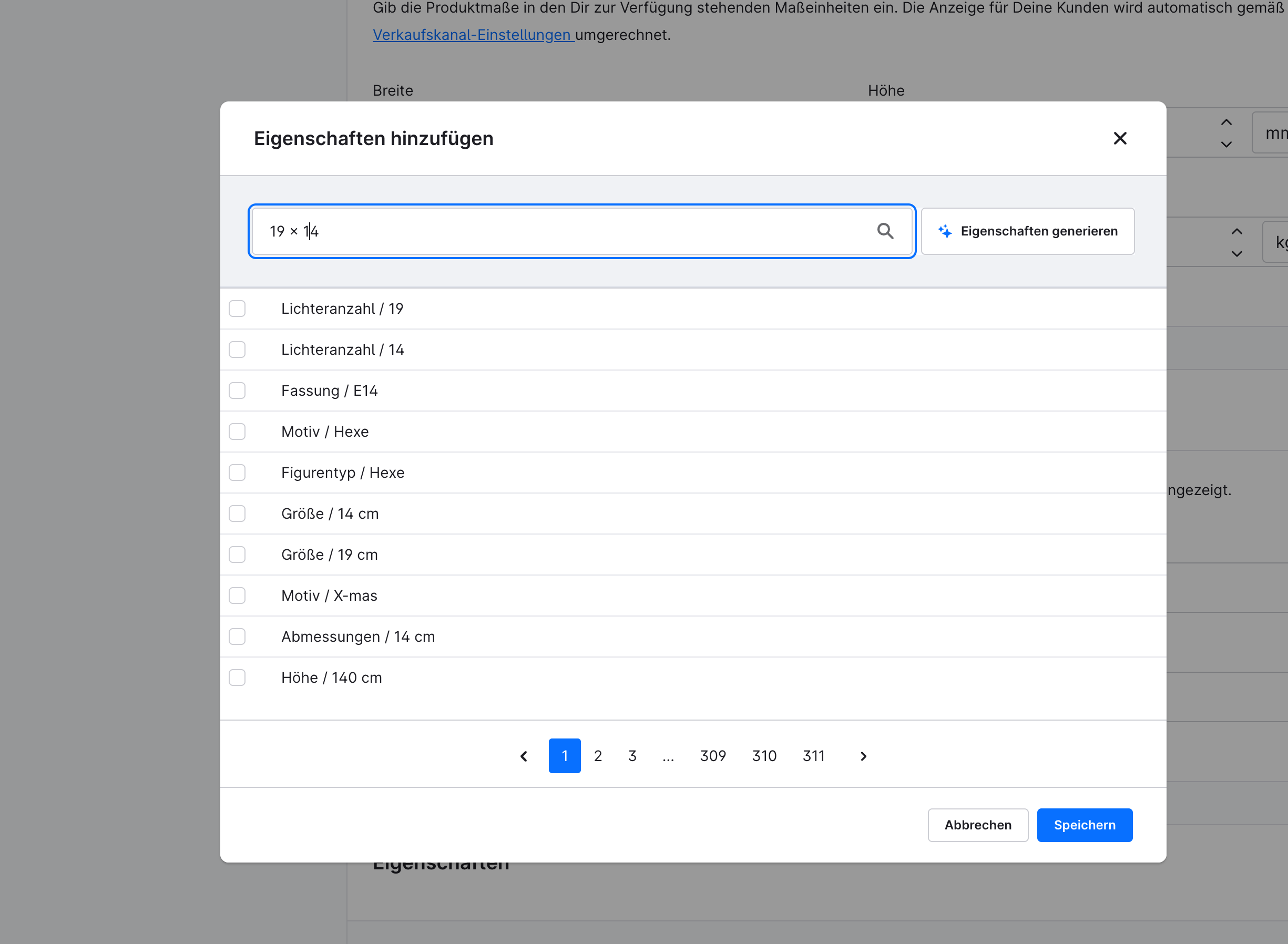
Without plugin: searching for "19 × 14" returns 311 result pages, with values like "Number of lights / 19" or "Socket / E14" at the top.
What we changed in the search
The Advanced Property Search intervenes at exactly the two points we noticed during testing, and then re-sorts the results as well.
First, we reversed the logic. The search term is still split into individual words at the spaces. But only values containing all of these words in their name are displayed. So anyone who types a second word gets a shorter list, not a longer one. A word can appear in the middle of a longer name – "figur", for example, also finds "Dekofigur" – and the order in which the words appear in the name doesn't matter. For "19 × 14", this leaves "19 × 14 × 7 cm" in the test shop, but also, for example, "12 × 19 × 14 cm", because both numbers appear in it.
Second, we removed the group name from the search. Only the name of the value itself is searched now. "Witch" and "Dog" therefore no longer appear for "deko figur", because neither "deko" nor "figur" occurs in their name, regardless of what the group is called.
And then there's the order. The list is no longer output alphabetically. Values that begin with the complete search term come first. For "19 × 14", that would be "19 × 14 × 7 cm", for example. Below that come values that contain the term as a contiguous string somewhere in the name, such as "10 × 19 × 14 cm". At the very bottom are values in which the words are scattered, "14 × 19 × 11 cm" for example. Within these groups, values are then sorted by name – the way a human counts: "2 cm" comes before "10 cm". With character-by-character sorting it would be the other way round, because 1 comes before 2. Without a search term there is no weighting; the values simply appear in this name order.
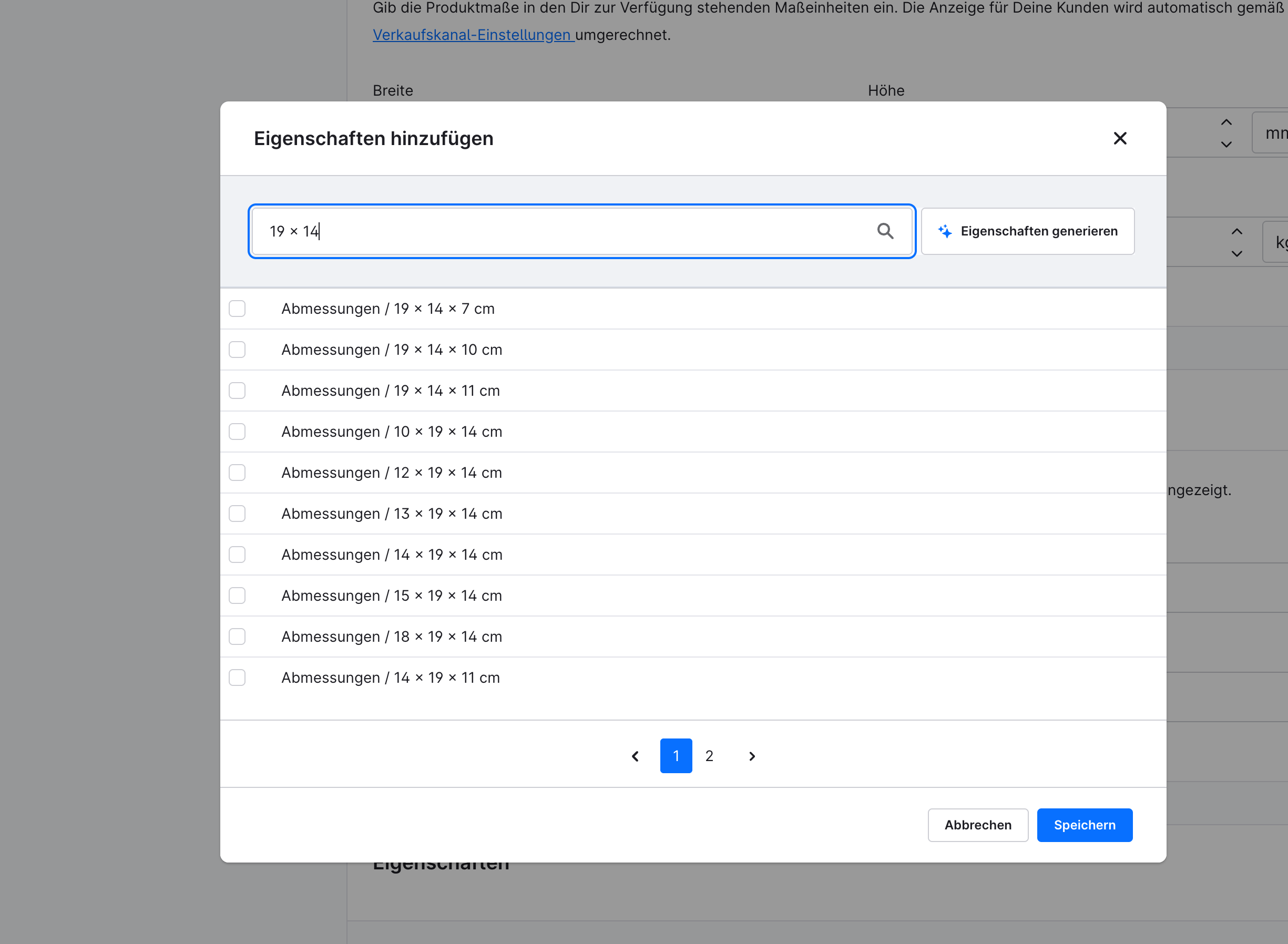
With plugin: 2 result pages, values beginning with "19 × 14" are at the top.
In the test shop, the list for "deko figur" shrank from 47 to 3 pages, and for "19 × 14" from 311 to 2 pages. In another shop the results may differ; it depends on your own properties and on how long the value lists are. If you want to know more, you'll find the three rules in full detail in the documentation.
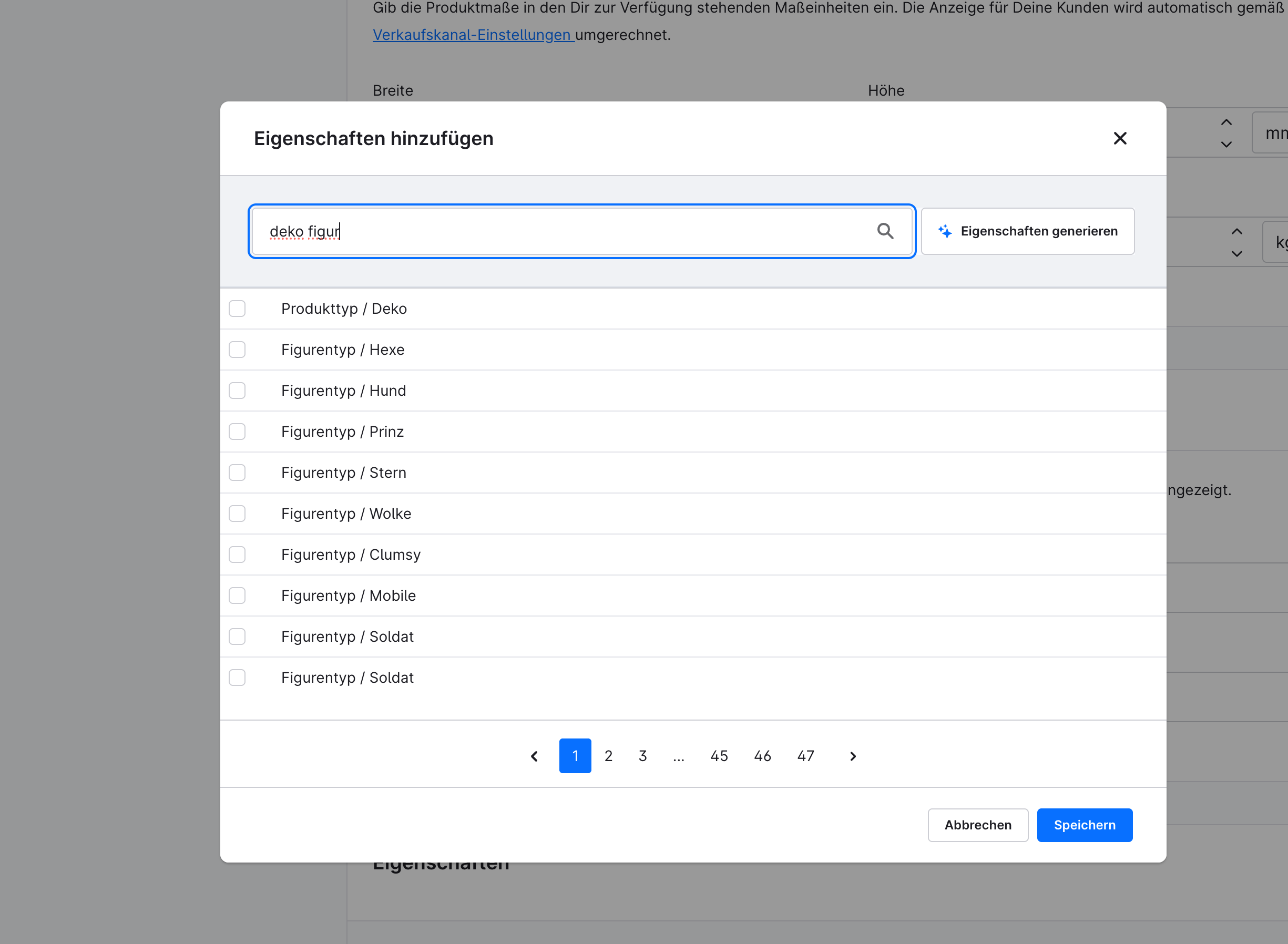
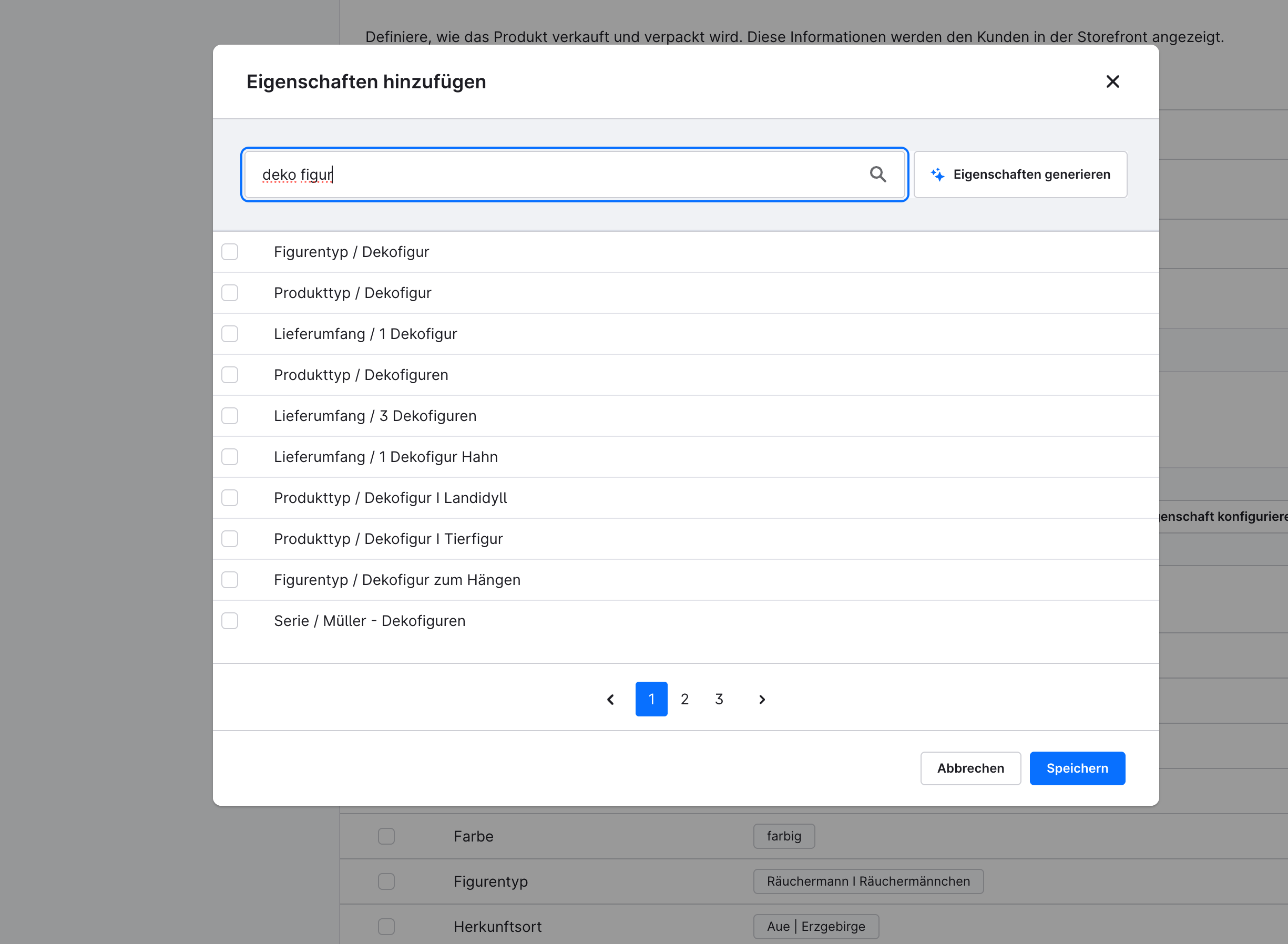
Without plugin: 47 pages, including "Figure type / Witch" and "Figure type / Dog", because the group name matches. With plugin: 3 pages, only values with "deko" and "figur" in their own name.
What stays the same
The plugin only works in the Administration. The search your customers use in the shop is not affected, and neither is property management under "Catalogues → Properties". If a property group has already been selected in the dialog, only its values are searched, as usual.
No database tables are created, no data of its own is stored and existing data is not modified. The plugin doesn't bring its own roles or permissions either. Who is allowed to open the dialog is still governed by the permissions in Shopware. The weighting of the three levels is fixed in the plugin and cannot be configured. If anyone needs a different order, feel free to get in touch with us.
Setup and pricing
It's simple: there's nothing to configure. After installation and activation under "Extensions → My extensions", the cache is cleared and the Administration is reloaded – that's it. No reindexing is required. To try it out, open a product under "Catalogues → Products", switch to the "Specifications" tab and click "Configure properties" there. If the plugin is uninstalled, Shopware's standard behaviour applies again and nothing is left behind.
The Advanced Property Search runs on Shopware 6.6.0.0 to 6.7.14.0. It costs €7.99 per month and can be cancelled monthly; the annual subscription is €83.88, both plus VAT. Get started with a free trial month in the Shopware Store.
Our recommendation
If your team regularly maintains products with lots of properties, the trial month is probably worth a look. Search for a dimension from your own product range once before and once after activation, and compare the page counts. And if you come across a spot in Shopware itself that makes you shake your head, tell us about it. Maybe it will become the next plugin.
Further links
Advanced Property Search in the Shopware Store
Documentation for the Advanced Property Search

Comments
No comments yet.
Write a comment